
Once smrtPhone is connected (see Connect smrtPhone to HubSpot), here's what the integration looks like day-to-day for reps working inside HubSpot.
Placing and receiving calls in HubSpot
The smrtPhone dialer opens right inside HubSpot. To use it, click the phone icon in the top right corner of HubSpot and, from the dropdown menu, switch from HubSpot to smrtPhone. Then:
- Place a call: click the native Call button next to a contact, company, or deal, and the call is placed instantly with the smrtPhone dialer.
- Receive calls: inbound calls ring in the dialer too. Set yourself as Available or Unavailable to receive or not receive calls in HubSpot. This only affects calls ringing in HubSpot.
- Pick a call status: after a call, the status you pick becomes the HubSpot call outcome. Press View call to go straight to the Activities tab and see the logged call in context.
Other ways to call:
- From a contacts list: in a HubSpot contacts list view, if the Phone Number or Mobile Phone Number column is displayed, the smrtPhone Chrome Extension shows click-to-call and text buttons next to the numbers.
- From records and other pages: with the smrtPhone Chrome Extension, call or text from the buttons next to phone numbers throughout HubSpot.
How HubSpot objects relate to your calls and texts
Contact is the main object smrtPhone syncs to. Related to each contact, HubSpot can also have:
- Company
- Deals
- Tickets
A single contact can be related to more than one of these at once. When a call or text happens, HubSpot recognizes all of the contact's related objects and adds the communication event to each of them, so the activity shows up everywhere it's relevant, not just on the contact record.
You can view this activity in the Activities tab, and see a record's associated objects listed on the right-hand side of the HubSpot record.
Turn on SMS in the activity feed
By default, SMS activities are not selected in the HubSpot activity feed. To see them:
- In the activity feed, open Activity.
- Open the Activity (action buttons) menu.
- Select SMS.
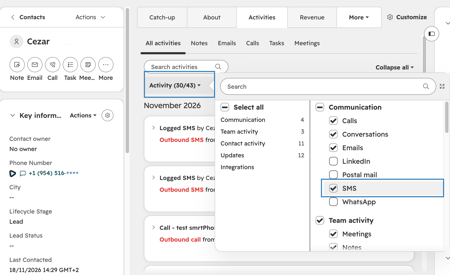
Once enabled, texts logged by smrtPhone will appear in the activity feed alongside calls.
Recordings and AI Tools notes
- Call recordings are stored in smrtPhone and linked from the call in HubSpot. HubSpot can also read the recording and produce its own call summary, if that feature is available in your HubSpot account.
- smrtPhone AI Tools outputs, once enabled, are placed in Notes on the record.
The Calls object
HubSpot's Calls object stores every call synced from smrtPhone, even if the call isn't related to any contact, for example, a call to a number that isn't in HubSpot. In HubSpot, find it under CRM > Calls. Interaction Logs in smrtPhone always take you to this place in HubSpot.
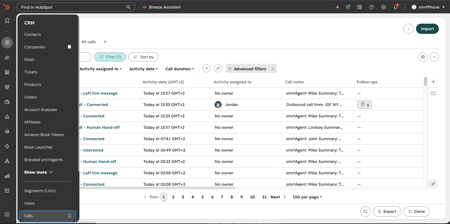
This applies to calls only. SMS messages are not stored in the Calls object.
