
The Business Hours Applet for SMS/text flows allows you to direct text messages to different Users or Teams depending on the time of day and day of the week that they are received. It works the same as the Business Hours Applet for Call Flows.
To reach the SMS flow editor, go to your Admin Dashboard > Call Flow tab and select Create SMS Flow (if you never created one) or click on the envelope icon to edit an existing flow.
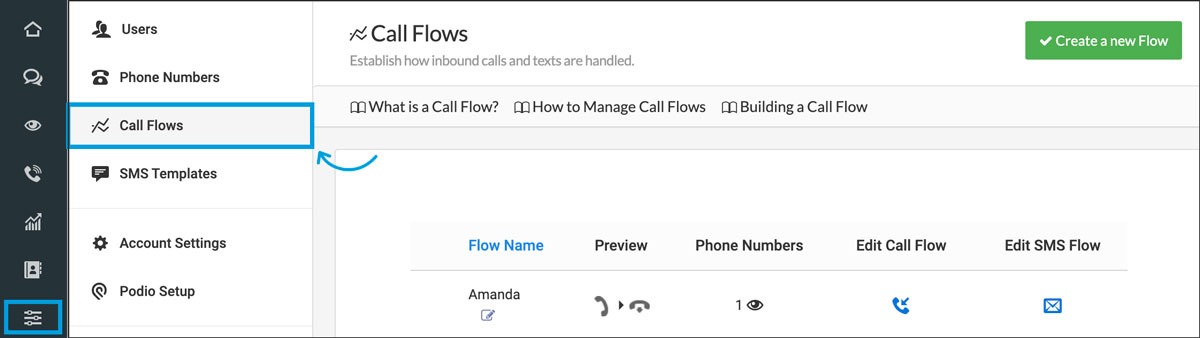
Learn more about how to Build an Incoming Call or SMS flow ⇢
The Business Hours Applet
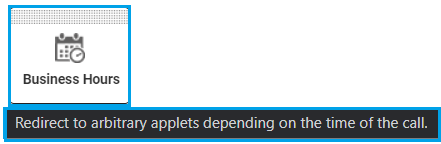
To set Business Hours:
Drag the Business Hours Applet to the Flow and complete the fields.
-
Select the opening time for each day you are open
-
Select the closing time for each day you are open
-
Ensure the days you are closed are marked closed

-
Once Hours are set, determine what happens if Open/Closed
-
At the bottom of the Business Hours Applet, there are two options:
-
Open applet
-
Closed applet
-
Select the opening time for each day you are open
Select the closing time for each day you are open
Ensure the days you are closed are marked closed
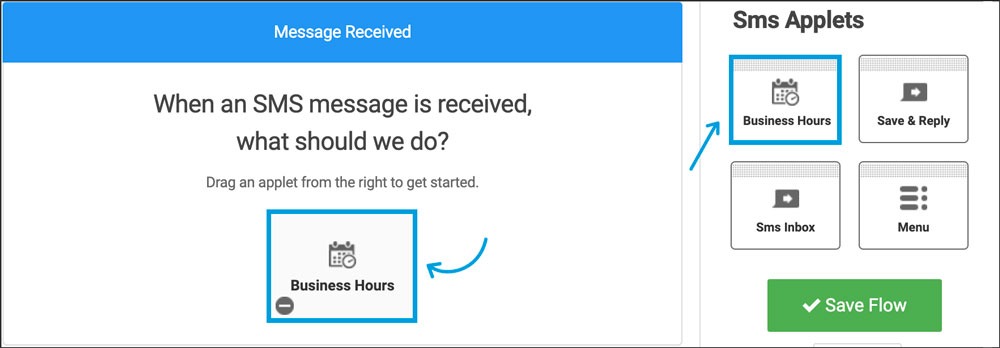
Once Hours are set, determine what happens if Open/Closed
At the bottom of the Business Hours Applet, there are two options:
-
Open applet
-
Closed applet
From here, drag over an Applet option from the right menu depending on what you want to happen during/outside business hours.
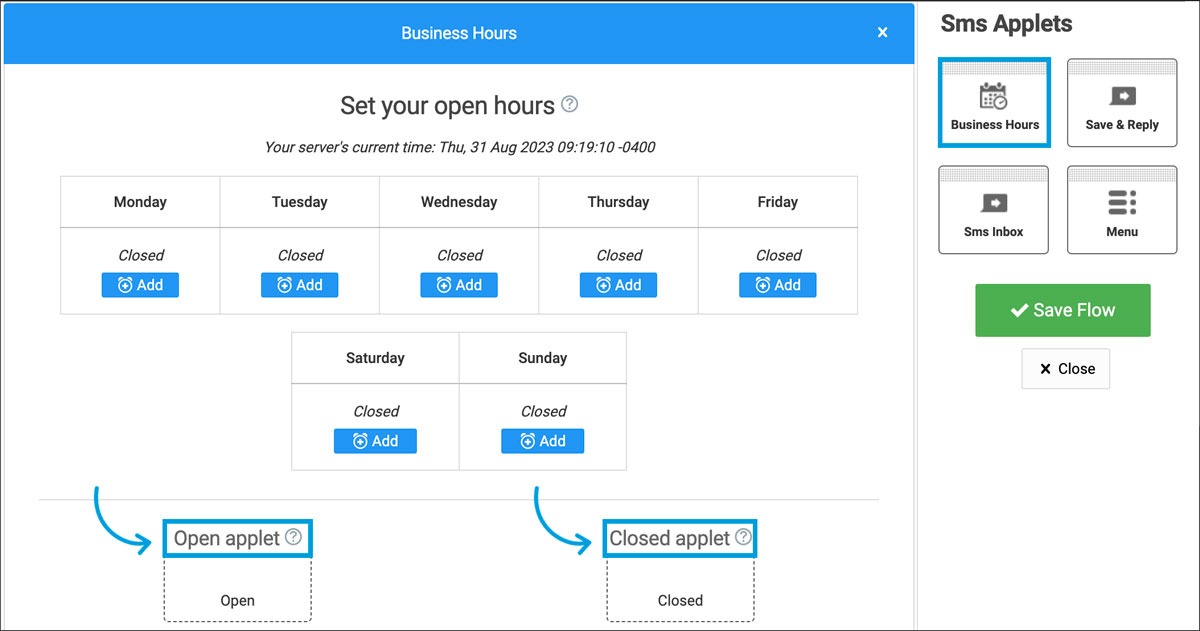
When setting Business Hours, keep in mind that the time zone might vary!
