
The smrtPhone navigation and menu structure in the Web App were designed to provide the information you need with the fewest clicks.
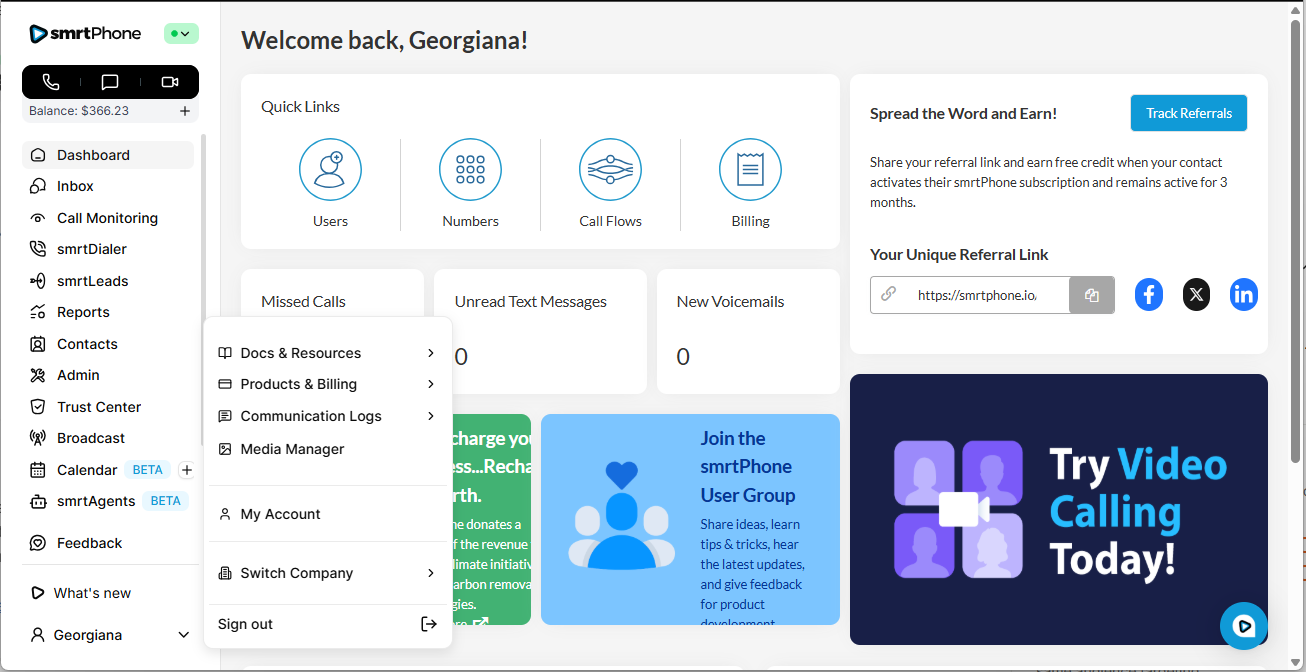
The vertical navigation on the left will give you access to the product's features and functionality. Also, the bottom left side gives you account setup, account information, and support.
Learn more about the initial setup of smrtPhone ⇢
Available/Unavailable Status
The Available/Unavailable toggle determines whether your smrtPhone will ring/push notifications of inbound communications to the Web App.
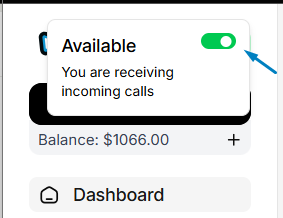
There are three dialers available within smrtPhone: the Web App, the Chrome Extension, and the Mobile App. The Available/Unavailable toggles work separately for each platform. For example: you can set yourself unavailable on the Mobile app, but available on the Web App and the Chrome Extension, or any combination that works for you.
Learn how to set yourself unavailable on the Mobile App ⇢
Web App Dialer
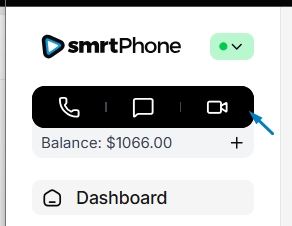
The top left navigation hosts the quick/regular Dialer. Clicking this black action button opens a screen where you can make a call or send a text quickly. Search for a contact, or type a number directly from the drop-down dialer. Also, the dialer can be moved around the page to see all the information that you might need, and it also collapses during calls if you need to.
From here, you can also see recent calls and update your Dialer Settings.
How the three dialers work together ⇢
Balance
This shows the current credit available on your account.
What does mean to have a negative balance ⇢
Add Funds
You can manually add funds or enable/modify Auto Top-Up which will ensure your account always has credit to use, based on automated billing at a threshold you set. Next to Balance, click on the plus ➕ icon and add funds to your account.
Dashboard
The button on the upper left will help return you to the dashboard screen, the main page of the Web App.

Inbox
The icon with the two conversation bubbles is your inbox. It's where you'll find your text messages and voicemails for both your personal account and Team inboxes. You can also access contacts through the Inbox window.

Remember that texts and voicemails can only get to your inbox based on how your inbound communication flows (Call Flows) are set up.
Call Monitoring
Call Monitoring is a smrtPhone Pro feature that allows Users with customized permissions to Listen, Whisper, and Join to live calls. It's designated by the eye icon (👁)

Read more about the Call Monitoring Pro Feature ⇢
smrtDialer
From Campaigns to Setup, all your power dialer benefits and functionalities are here.

smrtLeads
smrtLeads by smrtPhone is a smart way to ensure your lists of leads are clean, authentic, and ready to be called.

Reports
smrtPhone comes preset with many KPI Reports to help you understand your team, phone number, and campaign performance. Only Account Owners and Users with granted permissions will have access to reports.

The Reports section includes:

-
Overview Reports - Basic, macro-level reports for your smrtPhone account, in aggregate
-
Team Performance - Understand the strengths and weaknesses of Users on your Account
-
Phone Number Performance - Review phone number performance, ideal for Tracking Numbers
-
Campaign - Review the performance for smrtDialer Campaigns and filter these by Call performance, Call Status, or Calls by Agents
KPI Reports section of the documentation ⇢
Contacts
The Contacts page holds all your saved contacts and leads you to the Inbox.

Admin Dashboard Settings
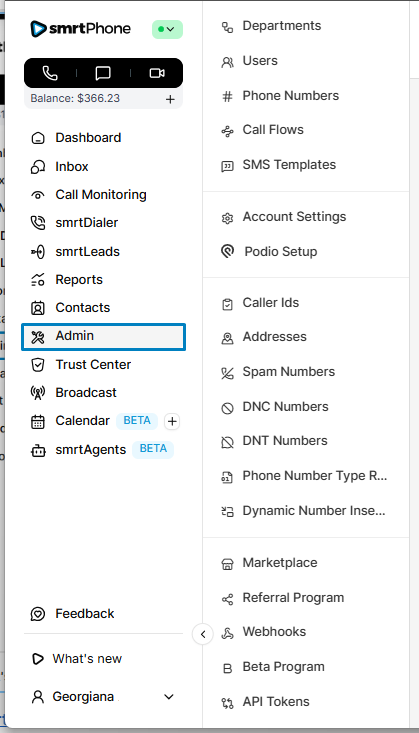
The Admin panel is how the Account is managed, either by the Account Owner or by Users with granted permissions.
Trust Center
Account Owners and users who gain permission to modify account settings must register their businesses in the Trust Center, where they'll be given access to crucial verification products. The first step is to get your business verified.

Trust Center products & services include:
-
STIR/SHAKEN - Verified voice
-
A2P 10DLC - Verified texting
-
CNAM - Custom Caller ID
-
Branded Calls - Enhanced Caller ID
More information about the smrtPhone's Trust Center ⇢
Broadcast
🚀 Coming soon!

Calendar
The smrtPhone Calendar feature is designed to help you track, document, and manage follow-up actions with your callers.
Learn more about this feature ⇢
smrtAgents
✨ When no one from your team can answer, the smrtAgent steps in immediately. It holds natural conversations, gathers key lead information, and takes smart, predefined actions without placing the caller on hold or causing frustration.
More information about the smrtAgent ⇢

Help and Account Information
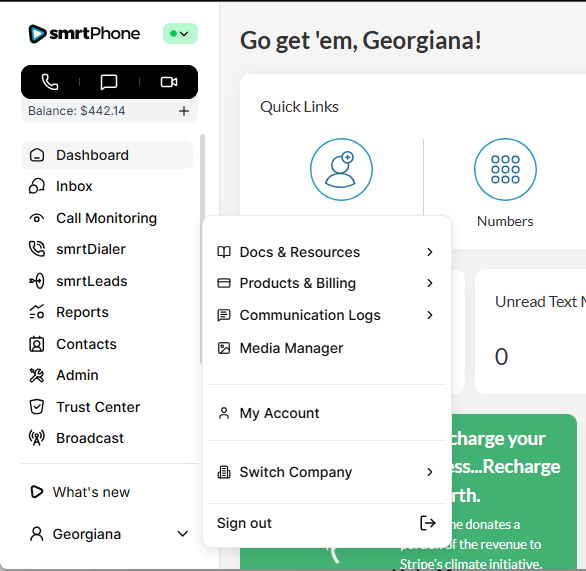
In the bottom left side, you have tools that help you manage your Account.
If you are User with limited permissions, you will only see: Documentation and Resources, Help, What's New, and Your Account Menu.
Account Owners and users with personalized permissions may additionally see the Account Balance and the option to add funds, as seen below:
What's New
Clicking on the What's New button, opens up a panel on the right side with our latest announcements. A red notification icon 🛑 will appear if there is a new article to read.
Help Menu
Clicking the arrow next to your name opens a menu that gives you access to:
-
smrtPhone Documentation - Our comprehensive library of helpful articles to help you navigate our products. It's where you are now, if you're reading this!
-
smrtPhone User Group - On Facebook, our User Group is for sharing tips, tricks, peer support and getting announcements
-
Quick link to troubleshooting guides - Answers to common issues
-
Cancellation Policy & Procedures - Don't forget to port numbers out before canceling!
-
Talk to Support- Initiates a live chat
Talk to Support- Initiates a live chat
How to get help from smrtPhone ⇢
Products & Billing and Communication Logs
Right under the Resources, you can find the Products & Billing / Logs section, which includes:
-
Billing History - See your charges and understand the activity behind them
-
Usage - See a detailed list of your charges, split by categories
-
Products - Here, you can see all the products active on your account and their subscriptions. You can also change subscription plans or cancel them
-
Payment Methods - See the active card and top-up options
-
Recording Storage - View and manage your call recording storage
-
Communication Logs - See all logs for calls, texts, video, and AI
Media Manager
Manage audio recordings for use in Call Flows, smartDialer Campaigns, Hold Music, and Voicemail.
My Account
Find your account settings, security, and notifications, from voicemail to 2FA.
If you have any questions about where to go for something, don't hesitate to start a live chat, and one of our Support Team Members will be happy to help!
