
📥 Inbox Overview
Text Messages, Voicemails, and Contacts are accessible from your Inbox.
When logged into smrtPhone via a web browser, you can access your Inbox from the left navigation menu look for the two conversation bubbles icon. Inside the Inbox, you’ll find the following main sections: Contacts, Inbox, Teams, and Voicemail.

⇠ Ensure your phone numbers are enabled to receive text messages
If your account was created after 11.06.2026, your Inbox and Contacts come with a slightly different design and options. The main functionality does not change.
If your account was created before 11th of September, you can follow the instructions below.
Inbox for recent clients
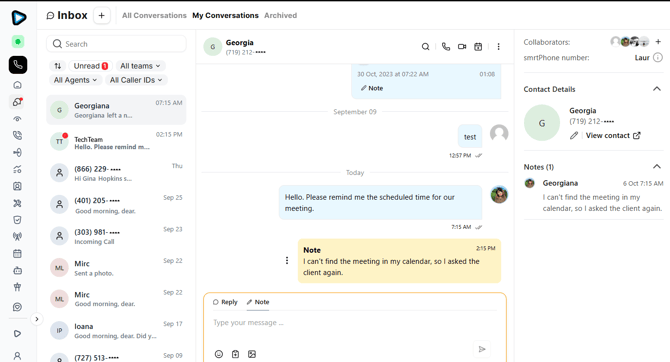
Overview
The Inbox offers many options, ready at your fingertips from the Inbox tab.
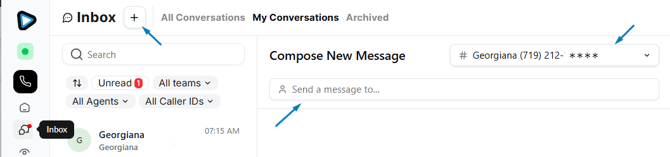
1. Start a conversation by clicking the plus button right next to Inbox
-
Select the Caller ID for the conversation (upper right)
-
Select the sender's number (search, type, or paste it)
- Start typing and hit send
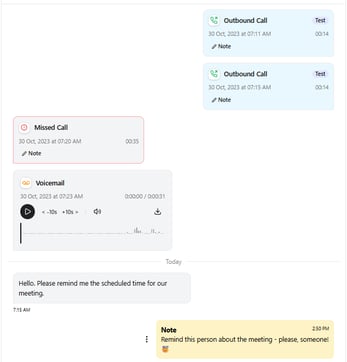
- Text messages
- Missed calls
- Inbound/outbound calls
- Voicemails
- Notes within the conversation
-
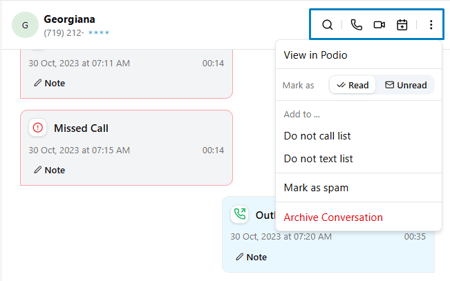
Search - Search in conversation
-
Call - Start a phone conversation
-
Video call - Start a video call
-
Add a follow-up - Add a new event in your Calendar
-
More options (3 dots)
- Mark as read/unread
- Add the contact to DNC, DNT
- Mark it as spam
- Archive the conversation
Inbox - Folders
When it comes to Conversations, now the Inbox includes, besides text messages, Incoming/Outbound calls to that number and also voicemails.
1. All Conversations - Depending on your permissions, you can have access to all conversations available on the smrtPhone account.
2. My Conversations - Here you can find all your conversations, the inbound and outbound messages/calls.
3. Archived - Here you can find the conversations that are no longer active and were archived. This folder is also ruled by permissions.
Inbox - Categories
These categories are, in fact, filters to sort your inbox communication history. You can sort the messages by these filters:
-
Sorting - Sort the messages from inbox by date, newest or oldest
-
Unread - See only unread messages
-
All Teams - Select a particular Inbound team or see the messages from all teams
-
All Agents - Select a particular Agent or see the messages for all agents (including AI agents)
-
All caller IDs - Select a particular caller ID or see the messages for all caller IDs available
Inbox - Right menu
On the right side of the Inbox tab, you have these pieces of information:
1. Collaborators - This option allows you to add/remove users for a particular conversation, involving them without being part of a team
2. smrtPhone number - The number used to start this conversation
3. Contact Details - All information available about the contact. If integrated with a CRM, you can also see them in your CRM; just click the arrow button
4. Notes - You can leave notes within the conversation; the receiver is not aware of them. These can be very useful for further contact or when it comes to teams and collaborators
Accounts Created Before September 2026
👥 Contacts in the Inbox - previously existing accounts

All your smrtPhone contacts are now listed within the Inbox.
Read more about Contacts Page ⇢
✉️ My Inbox: Personal Text Messages
-
This section displays text messages sent directly to you.

Your text messages will appear in this section's inbox, which should be the default when clicking in. You can select any message from the list, read it, and reply directly from this interface.
You can also sort conversations, using the filters Newest First or Unread First.
🧑🤝🧑 Inbound Teams: Team-Based Text Messages
-
Text messages for your Inbound Teams

Depending on how your text message inbound communication/call flows are set up, you may receive messages that are not necessarily sent to you personally but rather distributed to a team of which you are an assigned member.
To read and respond to messages routed to a team, look under the Teams section of the Inbox. Click on the Team that you are focused on. From there, you can select that Team's Inbox (text messages).
If you need to be added or removed from a Team, please talk to your Account Owner or users with appropriate Activity Management permissions.
📬 Voicemail
You can access all your voicemails directly from your Inbox, whether they’re sent to you personally through the call flow you’ve set up or shared with your teams.
To listen to a voicemail, go to Inbox > Voicemail, and select the message you want to hear.

If Voicemail Transcripts are enabled within Account Settings, a transcript will appear when you click on a voicemail in the list. This feature is available within your Web App Inbox tab and helps you quickly understand the message without listening.
Also, the Voicemails can be sorted using the filters available on the dashboard.
How to use Voicemail in the Call Flow ⇢
⚡ Inbox Actions: Manage Your Messages Efficiently
Use quick Inbox actions to save time and organize your inbound communication. To better keep track of them, all unread messages will always be on top.
Once you've selected any text message from your Inbox, you will see an Actions drop-down menus, in the conversation or in the list of conversations.

From here, you can:
-
📤 Send a new message
-
🔁 Mark message as Unread
-
🗑️ Delete conversation
-
📞 Call or Video Call the sender. The Caller ID used will match the one used in the conversation, overriding Sticky or Geo Caller ID.
-
🔍 Search within the conversation or the entire Inbox
-
👤 Create or Edit a Contact
-
🔗 View in CRM (if applicable)
-
🚫 Mark as Spam
-
⛔ Add to the Do Not Text (DNT) list
*The call-back Caller ID will match the one used in the conversation.
You can see the notes you left on the conversation (if any). Also, the Communication History is available when clicking on the specific conversation.
🖼️ Multimedia Messaging (MMS)
When replying to a conversation, you can reply with images (MMS), pushed to CRM (if the case). Regarding the MMS, you can add multiple images to a message (one by one), open, copy, or download them (once sent).
You can also receive voice notes in your messages!
👀 View Sender in Team Conversations
In the Team Inbox on the Web App, you can view which of your users sent an outgoing message by rolling over the User icon next to the message. A label with the user's name will pop up. This is helpful for better team management, training, accountability, and record-keeping.

Don't forget that you can also see this information in your SMS logs.
🔔 Notification on Screen
You are also notified on the screen with a small pop-up and a gentle sound every time you receive a voicemail (or a text message/MMS).

You can disable these notifications by accessing the upper right corner of your Dashboard > My Account > Toggle Notifications and set the Inbox Alert notification off.
Learn more about how to text using smrtPhone. ⇢
📚 Bulk Actions: Manage Multiple Conversations
Within the Inbox, you can mark all your messages and voicemails, both individual and from teams, and perform bulk actions on them.

Click on one conversation, press the arrow for the drop-down menu, and click Select. Once done, you can select multiple conversations in the Inbox and decide to:
-
✅ Mark as Read/Unread
-
🗑️ Delete selected conversations
-
❌ Cancel selection
