
What smrtDialer Does With HubSpot
smrtDialer is smrtPhone's power dialer. Connected to HubSpot, it lets you build a calling campaign directly from your HubSpot data instead of exporting and re-importing lists by hand.
- Two ways to build a campaign: import from your HubSpot CRM (Lists or Companies), or upload an Excel/CSV spreadsheet for a static, one-off list.
- Multi-list selection: when building a campaign from Lists, choose up to 20 HubSpot lists at once from the smrtPhone dropdown. A contact who is in several lists is imported once.
- Owner filtering: narrow a Lists campaign to the contacts owned by a particular user, or build a Companies campaign from the companies a particular user owns, so reps only dial what is assigned to them.
- Automatic call logging: calls made in a HubSpot-sourced campaign are logged on the contact's HubSpot Activities timeline, with the call status you pick.
- Shared call statuses: smrtDialer uses the same call statuses as smrtPhone. They come from HubSpot, so customize them there, then resync.
- Push To CRM for Excel campaigns: calls from an Excel campaign can be pushed to HubSpot with one click.
Before You Start
- An active smrtPhone account connected to HubSpot. See Connect smrtPhone to HubSpot if you haven't linked the two platforms yet.
- At least one HubSpot contact list (segment) you want to dial, or a HubSpot user who owns companies with contacts you want to dial, already set up in HubSpot.
- The HubSpot users you'll be dialing for are mapped to their smrtPhone users, so calls log against the right person.
➕ Create a New Campaign
Head to smrtDialer from your smrtPhone Dashboard (📞 icon in the left navigation) and select + New Campaign in the upper right corner.
You'll be asked to choose how you want to bring leads in: pulling from HubSpot, or uploading an Excel file. This article covers both paths.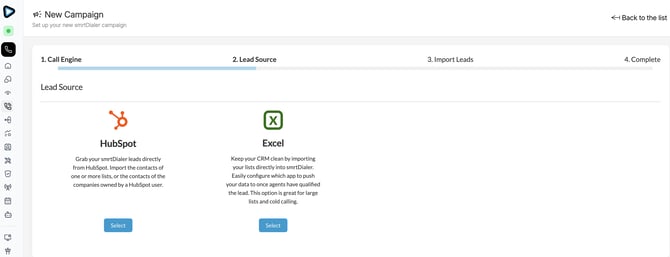
Option 1: Build a Campaign From Your HubSpot CRM
Choose Lists or Companies as your source
HubSpot gives you two ways to pull leads into a campaign.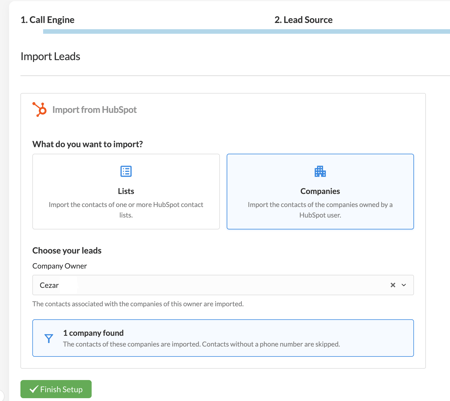
Lists
HubSpot lists (also called segments) group your contacts by the criteria you set, so a list shows you a segment of your database, not all of it. smrtDialer imports contact lists. Lists built from companies, deals or other objects don't appear in the dropdown. When you create a smrtDialer campaign from Lists:
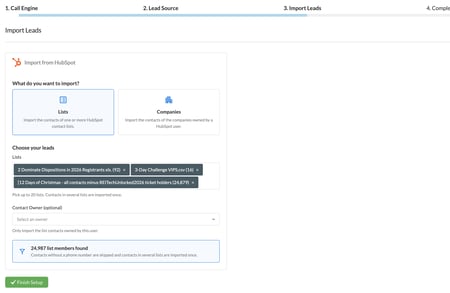
- Select up to 20 lists at once from the smrtPhone dropdown menu. You're not limited to a single list per campaign, and a contact who is in several lists is imported once.
- Optionally filter the leads by contact owner, so the campaign only includes contacts assigned to that person.
- Contacts with no phone number or mobile number are skipped. The number shown before you finish setup counts every list member, so it can be higher than the number of leads actually imported.
Companies
If you'd rather dial based on company records, choose Companies as your source. Company-based campaigns support one filter: the company owner. Select the owner and smrtDialer imports the contacts of every company that user owns, whoever owns the contacts.
- Only the contacts' phone numbers are used, not the company's own number. The company name is saved on each lead.
- Contacts with no phone number or mobile number are skipped, and a contact linked to several of the selected companies is imported once.
Configure the Call Engine
Set up how the campaign dials:
- Phone number(s) used for outbound Caller ID
- Number of lines to dial simultaneously (up to 4)
- Phone number depth: how many numbers to try per lead
- Recordings: Voicemail Drop, Callback Drop, and Hold Music (Pro)
- AI Tools, if enabled on your account
Add a Call Script (optional)
If you want agents to follow a specific set of talking points, build a Call Script here, or reuse an existing template.
Set Seats & Permissions
- Seat Management: assign agents a smrtDialer seat so they're able to dial the campaign.
- Campaign Permissions: choose which agents are allowed to run this particular campaign.
🟧 Option 2: Build a Campaign From Excel
Prefer a static, one-off list rather than a live HubSpot segment? Upload an Excel or CSV file instead:
- Choose Excel Upload as your campaign source.
- Map your spreadsheet columns (name, phone, email, etc.) to the correct fields.
- Continue through the same Call Engine, Call Script, and Seat/Permissions steps as above.
The dialing experience is identical either way. The main difference is how calls reach HubSpot. In a HubSpot-sourced campaign, calls are logged on the lead's HubSpot contact automatically. An Excel lead has no HubSpot record behind it yet, so you send its call to HubSpot with the Push To CRM button.
Here is more information about this type of campaign.
Call Statuses & Resyncing
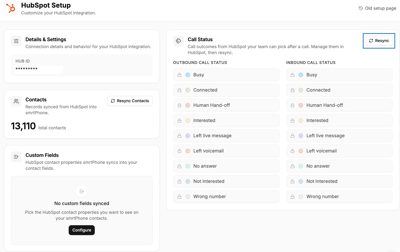
Call statuses (dispositions) in smrtDialer are the same as in smrtPhone. They aren't managed separately, and they come from HubSpot. To change what statuses are available:
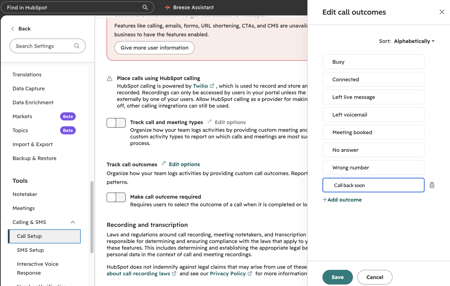
- Customize your call statuses inside HubSpot.
- In smrtPhone, go to Admin > HubSpot setup, find Call Status, and press Resync. Only smrtDialer admins can resync.
Updates made in HubSpot don't show up in smrtDialer until you resync. This keeps the status options your agents see during a call consistent with what's configured in your HubSpot account.
How Calls Log Back to HubSpot
HubSpot campaigns (Lists or Companies): calls are logged automatically. Each call appears on the lead's contact record in HubSpot, in the Activities tab, and the status you pick becomes the call outcome. If HubSpot can't log a call for any reason, your call and your dialer session aren't interrupted.
To bring in changes you've made in HubSpot to a running campaign, use the Re-Sync button on the campaign page.
Excel campaigns: use the Push To CRM button during a call to send it to HubSpot. smrtPhone creates a new contact in HubSpot Contacts for the lead, or uses the contact that already has that phone number, and logs the call on it. The button changes to Pushed! once it's done. Without the push, an Excel lead's call isn't logged in HubSpot.
After a call, use the links in the dialer to open the lead or the call in HubSpot.
