
What you'll learn
- Where to find and manage your Flows
- How to build an SMS Flow, step by step
- How saving, assigning, and testing work
Introduction
SMS Flows control what happens to every text message (SMS/MMS) that arrives on your smrtPhone numbers — which inbox it lands in, whether the sender gets an instant reply, and how after-hours messages are handled differently from business-hours ones.
You build the Flow once, assign it to a number, and smrtPhone applies it automatically to every inbound message on that line.
Where You Manage Flows
You will find the Flows tab under the Admin menu, where the Flow Builder lives. You can edit existing flows or create new ones (after finishing a Call Flow).
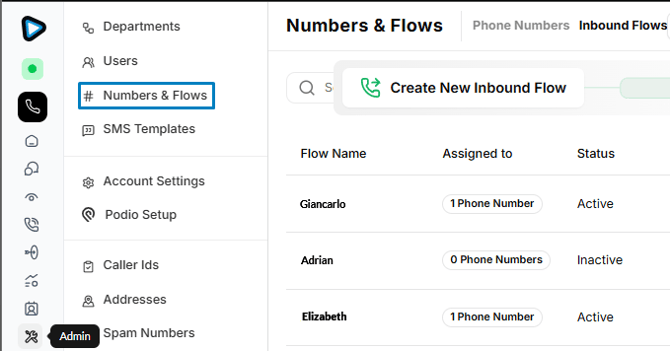
How to Build an SMS/Text Flow
There are two ways to get into the SMS builder:
Right after creating a Call Flow — a pop-up notice appears; click OK to go straight to the SMS Flow builder.
Later, from the dashboard — find the Call Flow in the list and click Create an SMS Flow on that same row.
Then build it:
- Pick an SMS applet from the displayed ones - the builder works the same way as the Call Flow Builder
- Configure the applet in the dialog that opens below
- Use Change to swap an applet, or the trash can 🗑️ icon to remove it
- Save, then assign the flow to a phone number
Configuring a Flow - SMS Inbox
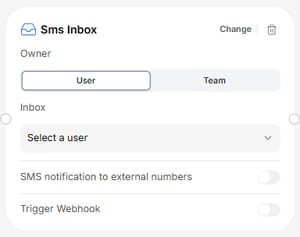
Pick between User, or Team:
- User — select a user from your organization. Then choose if they get SMS notification on an external number, and/or if this event triggers a webhook
- Team — works the same way as the User choice, but is based on your teams
SMS Applets
- ⏳ Business Hours - Determines if different actions/routing should happen at different times of day/days of the week
- 📩 SMS Inbox - Sends the message to a specific user or team inbox
- 📨 Save & Reply - Sends the message to a specific user or team inbox and sends a pre-programmed automated message back
- 📑 Menu - Gives customers options for information via keypress
- ✨smrtAgent - Select an AI to handle the incoming texts
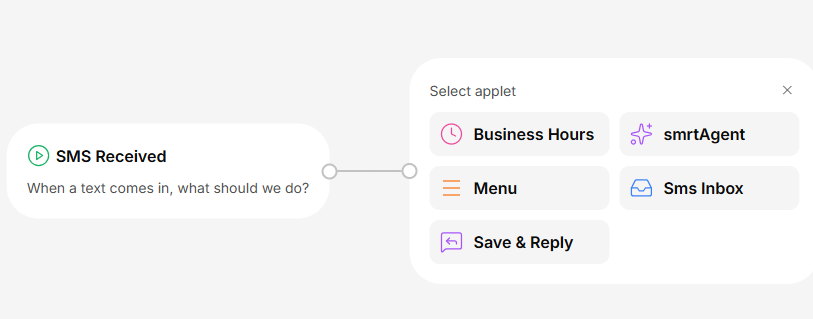
SMS Inbox vs. Save & Reply — the routing is identical. The only difference is whether the sender gets an automatic response back.
Branching works the same way as on the call side: Business Hours and Menu split the path, while an inbox ends it.
Save & Publishing
- Save and Close = publish. There is no draft state.
- Validation blocks saving until the required fields are complete — an empty SMS Flow cannot be saved.
- Once your flow is created, assign it to a phone number. A flow isn't live until it's on a number.
- Edits overwrite in place and take effect on save.
After You Have Built a Flow
Test it. Send a text to the assigned number and confirm it lands where you expect — and that any auto-reply fires with the right copy. Test both sides of a Business Hours branch if you've used one.
Find your Inbox Messages and Voicemail Recordings ⇢
