
One of the best things about smrtPhone is the total control you have over how incoming calls and texts are handled, improving your ability to create an optimal customer experience.
You tell the system how to route inbound communications by designing Call Flows and SMS Flows and assigning phone numbers to them.
-
You can assign multiple numbers to a single flow
-
Each phone number can only be assigned to one call flow and one SMS/text flow
It's helpful to think of Flows as a series of questions the system will ask to determine how to route the call/text, and you get to program the answers - all of which will happen in an instant.
When a call or a text comes in on a specific phone number, your smrtPhone system will look for the Flow assigned to that number and do what you've programmed it to do.
Have additional questions? Let us help!
smrtPhone is the All-in-One
Voice, Text, Video, and Power-dialing Platform that Helps You
Make More Calls, Send More Texts, and Close More Deals.
Don't have smrtPhone yet? Get started today!
Where You Manage Flows
You will find our drag-and-drop Flow Builder in the Admin Menu, under Call Flows. 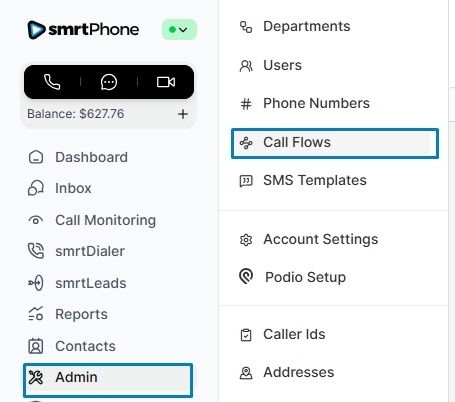
Learn more about the Flows Dashboard ⇢
Please keep in mind that if your account was created prior to September 10, the interface might look different, but the functionality is the same.
How to Build a Call Flow
-
Once in the Call Flow Dashboard, click the green ✅ Create a New Flow button in the upper right corner.
-
Name your flow something meaningful (you can rename it later if needed) and click Create Flow.
-
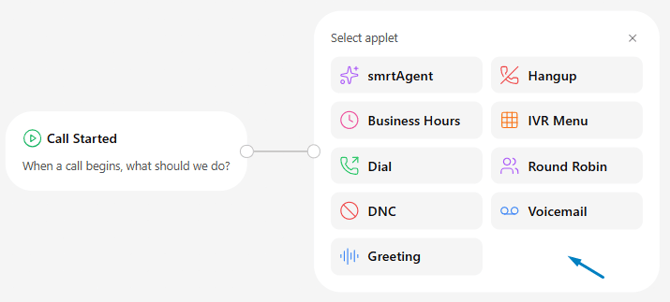
Pick the desired Applet from the available menu When a call begins, what should we do?
-
The Applet dialog window will appear below; make sure you set all of the options exactly as you want them.
-
If you want to use more than one Applet in a flow, you can let the finished Applet dialog window open and choose the next one over.
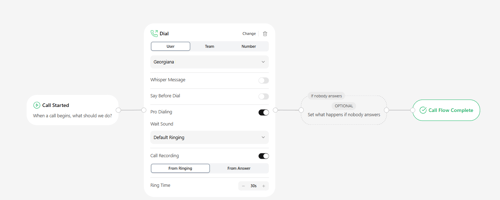
-
You can save your flow at any time during the process by pressing the Save button.
-
To close the Flow Builder, you can either cancel without saving your progress or continue with the SMS Flow.
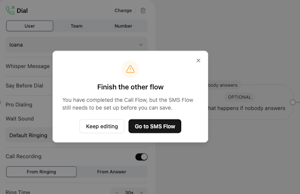
You can change the applet in the call flow by clicking the Change button, or delete it by clicking the trash can 🗑️ icon.
The Applet options available for Call Flows include:
-
📞 Dial Applet - Ring a user or team of users
-
👥 Round Robin - Ring a team, one user at a time
-
🔢 IVR Phone Menu - Present customizable options to the caller
-
➿ Voicemail - Send inbound communication to a message inbox
-
🗣️ Greeting - Set a recorded message that automatically plays (such as listing hours of operation)
-
⌛ Business Hours - Determine if different actions/routing should happen at different times of day/days of the week
- ✨ smrtAgent - Select an agent to take care of your call flow
-
📵 DNC- Gives your callers the power to unsubscribe or opt out of your calls and texts
-
☎️ Hangup - Disconnects the call
Another option for building a custom call flow is to take an existing call flow, duplicate it, and make any needed adjustments.
Learn about copying existing call flows ⇢
How to Build an SMS/Text Flow
To build an SMS Flow, you must already have a Call Flow enabled.
Once you create the Call Flow, you will see a pop-up notice leading you to the Flow builder menu.
Of course, if you are already in the Flow builder menu, click the red Create an SMS Flow button affiliated with the desired Call Flow. Similar to how the Call Flow Builder works, you simply drag the SMS Applets into the dialogue box.
The Applet options available for Call Flows include:
-
⌛ Business Hours - Determine if different actions/routing should happen at different times of day/days of the week
-
📨 Save & Reply - Send the message to a specific user or team inbox and send a pre-programmed automated message back
-
✉️ SMS Inbox - Send the message to a specific user or team inbox
-
🔡 Menu - Give customers options
Call flows or SMS flows that are empty cannot be saved.
After You Have Built a Flow
After you have built a call flow or an SMS flow, you must test it to make sure it behaves the way you expect.
Sometimes you may have missed a simple setting, or things need to be adjusted to create the best caller and smrtPhone user experience.
Please keep in mind some important information:
-
You cannot assign a flow that doesn't have both Call and SMS configured
-
Empty flow can not be saved
-
When a Call flow is created, you will also be redirected to create an SMS flow (if not already configured) and the other way around.
