
What you'll learn
- Where to find and manage your Flows
- How to build a Call Flow, step by step
- SMS Applets and instructions preview
- How saving, validation, and publishing work
Introduction
One of the best things about smrtPhone is the total control you have over how the system handles incoming calls and texts, which improves your ability to create an optimal customer experience.
It's helpful to think of Flows as a series of questions the system will ask to determine how to route the call or text — and you get to program the answers, all of which happen in an instant. You design Call Flows and SMS Flows, assign phone numbers to them, and when a call or text comes in on one of those numbers, smrtPhone does exactly what you've programmed.
Where You Manage Flows
You will find the tab for Numbers & Call Flows under the Admin menu.
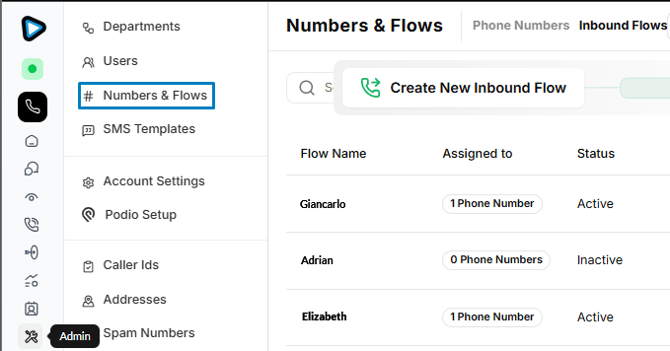
One Number → One Flow → All Channels.
Every phone number must always have an inbound flow assigned to it. That single flow handles both the call and the text side of that number.
Applets are the building blocks of a flow. They fall into three categories:
- Sequential (Dial, Round Robin, Greeting) — can be followed by a next step
- Branching (Business Hours, IVR Phone Menu) — split the path in two or more directions
- Terminal (Voicemail, smrtAgent, DNC, Hangup) — end the call
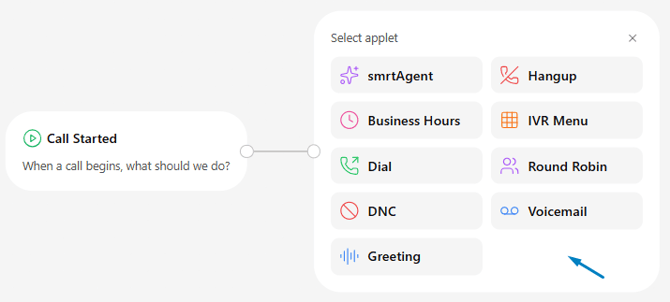
How to Build a Call Flow
Once you land on the Numbers & Flows page, you can create a new inbound flow or edit an existing one.
Creating a new inbound flow takes a few steps:
- Click Create New Inbound Flow
- Name your flow
- Pick the desired applet from the menu that appears: When a call begins, what should we do?
- The applet dialog window will appear below. Set all of the options exactly as you want them.
- Once an applet is configured, add the next one to continue building the path.
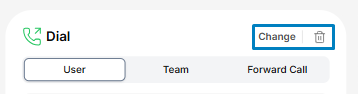 You can change an applet in the call flow by clicking the Change button, or delete it by clicking the trash can 🗑️ icon.
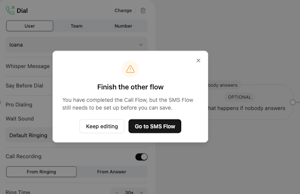
You can save your flow as soon as you see the message Call Flow Complete. To close the Flow Builder, you can either cancel without saving your progress or continue with the SMS Flow. You cannot exit the editor without finishing the call flow, and there is no draft option!
Have additional questions? Let us help!
Configuring a Flow - Dial Applet
Pick between User, Team, or Forward Call:
- User — select a user from your organization
- Team — works the same way as the User choice, but is based on your teams
- Forward Call — add the phone number you want to forward calls to; the rest of the setup is the same
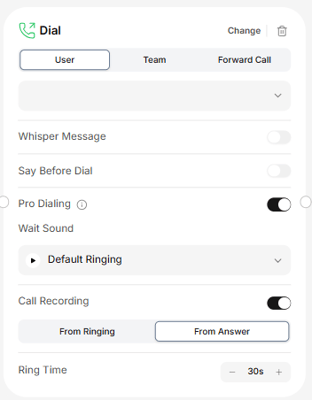
Then set the available options:
- Whisper Message — a message played to the agent before the call connects
- Say Before Dial — a message played to the caller before dialing begins
- Pro Dialing — when toggled on, reveals a Wait Sound selector (for example, Default Ringing) that the caller hears while the call is being placed
- Call Recording — choose From Ringing or From Answer
- Ring Time — set in 5-second increments (default 30s)
Call Flow applets
- 📞 Dial — Ring a user or team of users
- 👥 Round Robin — Ring a team, one user at a time
- 🔢 IVR Phone Menu — Present customizable options to the caller (keypresses 0–9, up to 10 options, plus Invalid and No Input branches)
- ➿ Voicemail — Send inbound communication to a message inbox. User voicemail uses the user's personal greeting; Team voicemail requires a prompt
- 🗣️ Greeting — Set a recorded message that automatically plays (such as hours of operation)
- ⌛ Business Hours — Determine if different actions/routing should happen at different times of day or days of the week
- ✨ smrtAgent — Select an AI to handle the call
- 📵 DNC — Gives your callers the power to unsubscribe or opt out of your calls and texts
- ☎️ Hangup — Disconnects the call
SMS Flow
After you create the Call Flow, you need to configure the SMS Flow to finish the process. An SMS Flow tells smrtPhone what to do the instant a text arrives on one of your numbers.
Same idea as a Call Flow: a series of questions the system asks, with answers you program in advance.
Saving & Publishing
- Save and Close = publish. There is no Draft state.
- A flow is not persisted at all until the first Save and Close.
- Validation blocks saving until every required field on both tabs is filled. Empty Call Flows or SMS Flows cannot be saved.
- You cannot exit the editor without finishing the call flow — you can either cancel without saving your progress, or continue to the SMS Flow.
- On first publish, an Assign to Phone Number modal opens so the flow goes live on a number.
- Edits overwrite in place. Version history is not yet available.
You cannot delete a Call Flow that has number(s) assigned until you reassign the phone numbers to another flow.
