
When dialing a smrtDialer Campaign your agent can categorize the calls with a click of a button. These categories (called filters) either keep the lead in the specific campaign to be called again or have them removed because they are interested/not interested (or have them removed and placed on the global DNC List for your entire smrtPhone/smrtDialer account.)
Some features, such as the Status Filters, require special permission, or else only the Account Owner can make modifications.
The options you program into your campaign are presented to agents to select the best fit, similar to call statuses when ending a call in smrtPhone. The biggest difference is that depending on your settings, some selected call statuses will remove the lead from being called again in that specific campaign.
Viewing Your Status Filters
You can view your current Status Filters from the Call Engine tab of smrtDialer Campaign Settings.
Several filters come pre-loaded, however, you can update and customize them.
The only option you cannot remove is DNC (Do Not Call) which is a legal requirement.
Call versus Skip
Next to the filters, you have two buttons: Skip or Call. Depending on how you have it toggled, it will ensure the lead's number will be called (Call) or not called again (Skip) during this campaign.
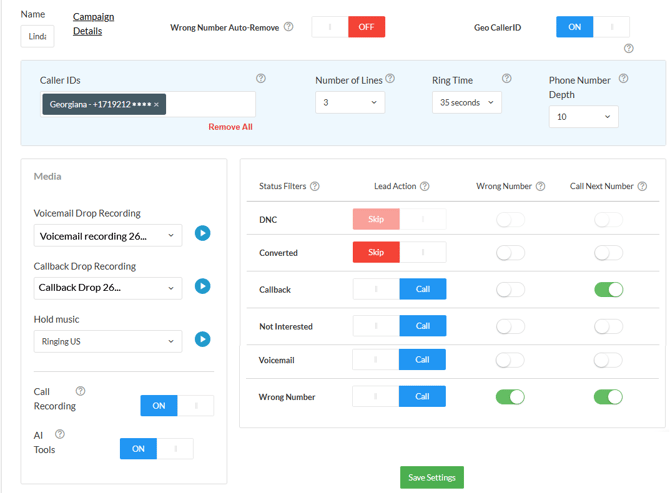
🔆 Keep in mind that you have the option to select Wrong Number Auto Remove. Most people don't want to try calling a wrong number again, right? If you have that option selected, it means the lead's number will be automatically removed from CRM. We typically recommend it, because why would you want to hold on to incorrect numbers?
Status Filters and Lead Actions
The Status Filter section of the Call Engine tab will determine what happens when a call status is selected during the running of a smrtDialer Campaign. When Skip is selected, it means when that corresponding call status is chosen at the end of a call, that contact will now be dropped from the campaign.
That smrtDialer Campaign will no longer dial that lead, not even after a reset. However, you can change the Lead Action status from Skip to Call, and the lead will be called again when re-running the campaign.
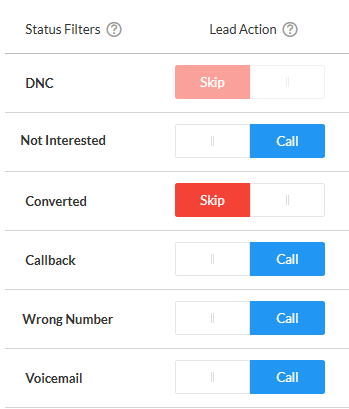
DNC - Do Not Call status is always set on Skip, per FCC regulations (and common sense, of course). This means that whenever you call a lead's number and his answer is clear not be reached again, once you set the "DNC" Call Status after finalizing the call, this particular number will not be called again.
Also, the filters Wrong Number and Call Next Number are not available if the call was marked DNC.

The rest of the statuses can be easily switched from Skip to Call, at your will, depending on your strategy and needs.
Learn why is DNC important ⇢
Contact Number Filters: Wrong Number & Call Next
These filters will act depending on the Phone Number Depth and how many phone numbers a lead has attached.
Wrong Number
If toggled on, when a call ends with this status (or any other call status that has Wrong Number enabled), the phone number that was just dialed is added to this campaign's Wrong Number list and will no longer be called in this campaign.
Call Next Number
If toggled on, when a call ends with this status, smrtDialer continues dialing the lead's next phone number, not moving to the next lead.
If resetting the campaign, the Lead Action button takes action, validating the last status selected for a contact (if they had more than one number, the last status selected for the contact is applied to all their numbers)
Best Practices for Status Filters
We warn you against adding too many Status Filters. You want to keep it simple for your agents by adding clear and smart statuses that can be easily used during the campaigns. Too many status filters added will make the work harder and longer after each phone call ends.
In the example above, there are some Status Filters pre-set, like Converted. It makes sense to select Skip for converted leads because if they have already moved to the next phase when you run the list again, you don't want to bother that person.
Examples of actions:
-
The line will continue calling the next number, even if the session is paused for statuses like: Busy, No Answer, or Failed.
-
The session (even if is paused) will continue to ring after a Voicemail was pushed, only if Auto-Resume is turned on.
➿ Left Voicemail and Voicemail Call statuses are not automatically considered as answered calls.
Integrated CRMs and their Call Status Options
🌐 Podio and 📼 Tape
Status Filters can be set in your Podio Organization, by modifying the Communications App Template.
This is a Category Field and you can add, remove, and personalize it. Once they are set in Podio, they will appear in smrtDialer, and you can adjust what happens when selected (Call/Skip) in the Call Engine tab.

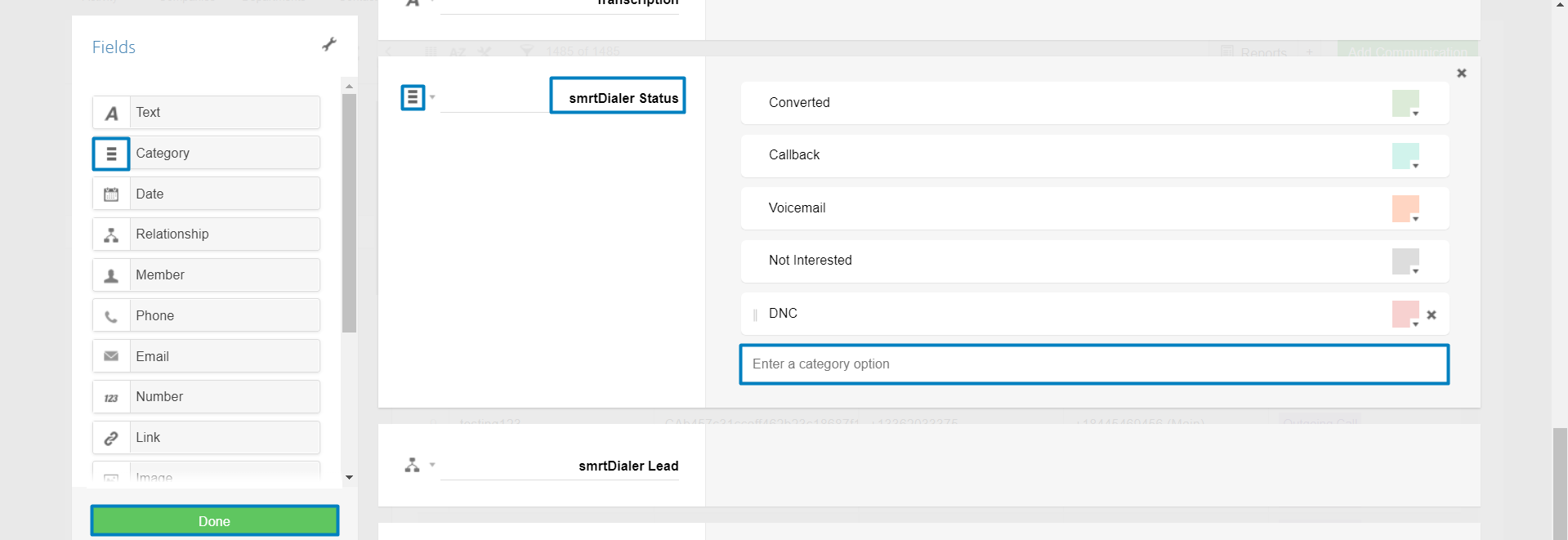
As a Tape User, you can modify your template as well. Head to your CRM, and Customize Fields, to modify your call statuses. Once they are set, will show up as options when ending a call.
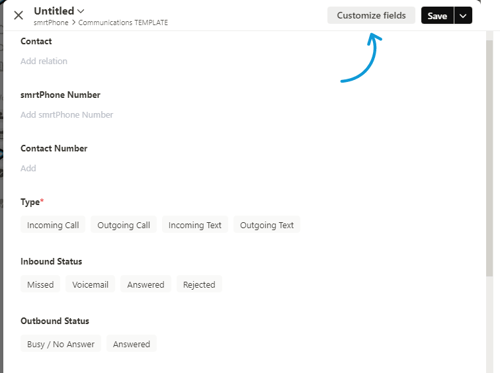
This is the only option available at this point to customize your Call Statuses for Podio and Tape CRM.
☁️ Salesforce, ⛰️ InvestorFuse, 🟧 Forefront, ⬆️ Realeflow, ℹ️ Invelo, 🏘️ REI Software, 🥕 Carrot, 📊 GoHighLevel, and ℹ️ Invelo CRM
Status Filters can be set in your smrtPhone Dashboard, by accessing smrtDialer > Setup > Call Statuses.
You can configure these call statuses, which will come across in all your smrtDialer Campaigns. You are able to add call statuses straight from the smrtPhone Setup Page.
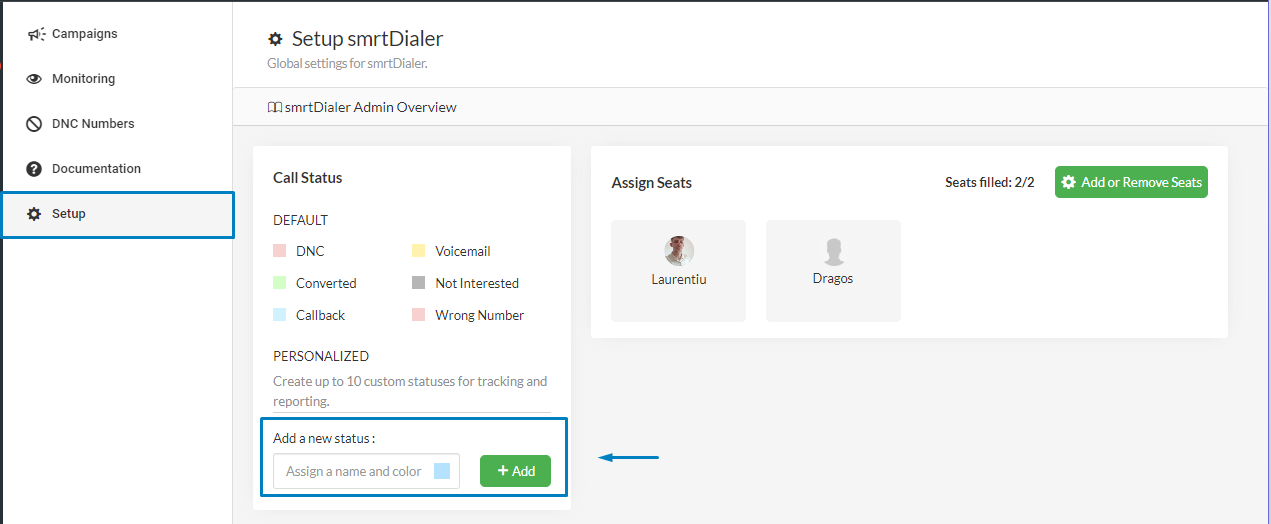
Learn more about how to Custom Status Filters for smrtDialer ⇢
GHL Users: These call statuses are available only in the smrtPhone logs object item for now.
🥷 DataSift CRM
DataSift users can use the default Call Statuses or the customized ones.
Call Statuses are working a bit differently for DataSift users.
You can see the call statuses in the Call Engine Tab. Choose from the options Skip/Call and they will work according to your selection. These filters are not only for leads or property. They can update both the property status and/or the phone number status.
Learn more on how the statuses work for DataSift ⇢
🌐 Podio / 📼 Tape Filters in Mapping your Campaign
While you are setting up your campaign, you can set some filters to be viewed while calling/ talking to a lead. These Fields can be organized by Category or View and are based on your Contacts App selected above.
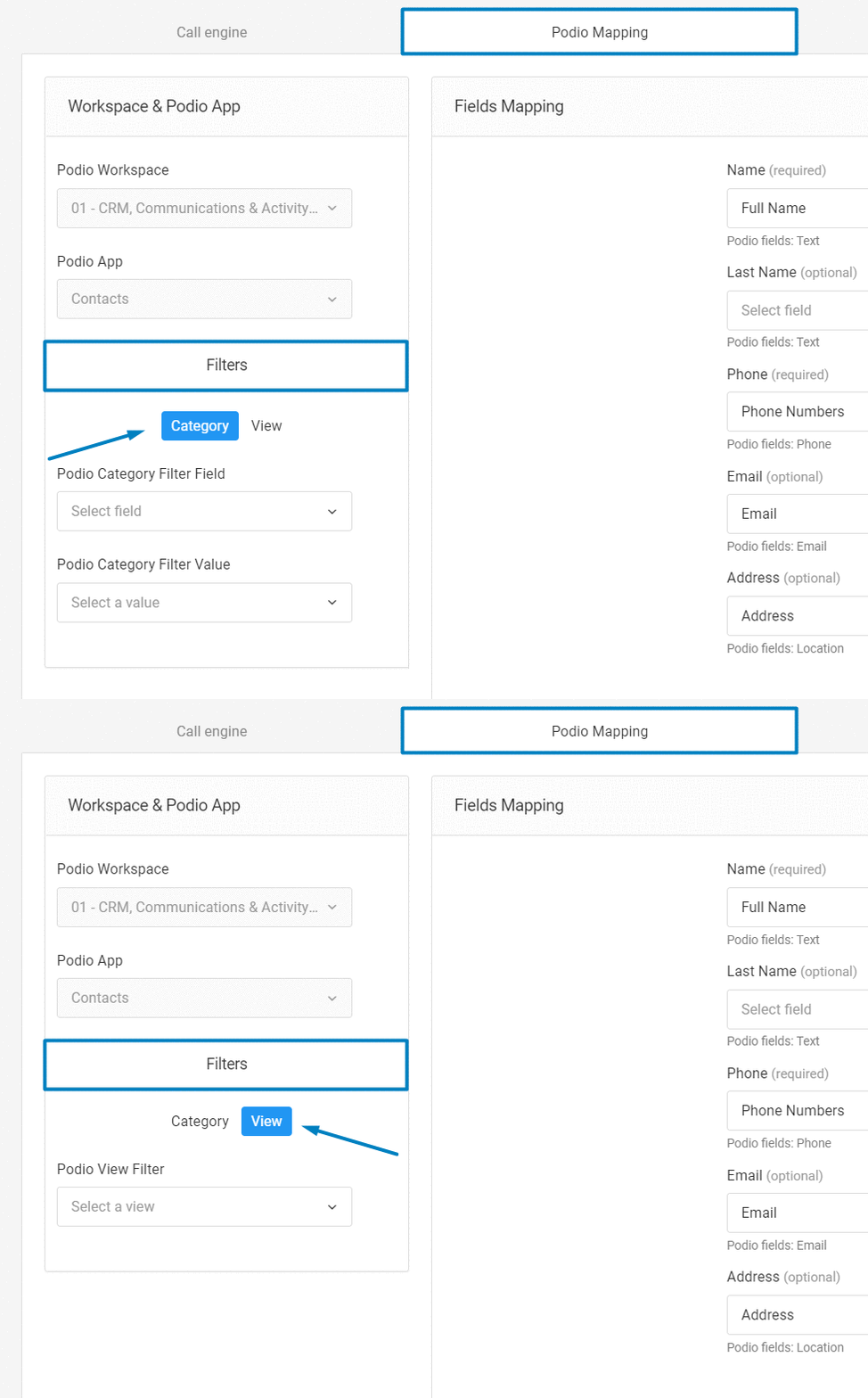
These Filters are here to help you organize your calls while running Campaigns, by seeing all the important details about a lead right the way you want it.
-
Category Filter - Allows you to select a particular field from CRM, based on your categories set in your Contacts App and a specific value for that selected category.
-
View Filter - Gives you a wider perspective
You can also skip this step, opt just for the filter - Category or View - but not select from the ones that are listed within.
We recommend selecting one filter or another - Category or View - for a clearer and more concise list of leads!
⛰️ InvestorFuse and 🥕 Carrot Users - Skip or Call
Your system is based on tasks. So, to avoid missing any leads due to callback push or voicemail, you can now keep these leads in the system and manually decide who will be pushed to your CRM.
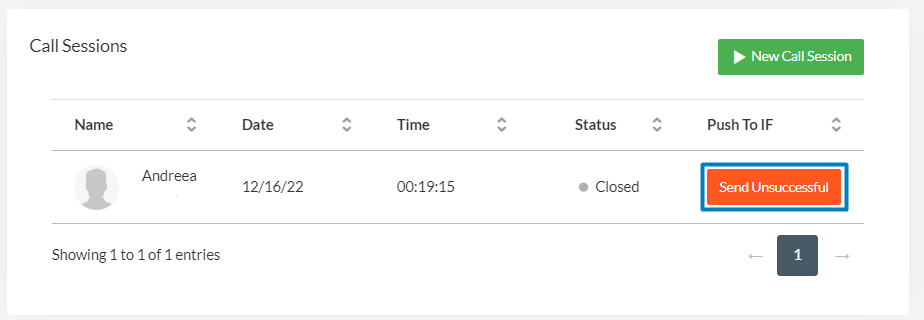
Now, based on your filters Skip or Call, you can re-dial the leads from a campaign that did not answer once the list is finished, and do not push the call status of the call until the end of the day or when the session is closed. You can find them in the campaign details and bulk-push them by session.
