
Read more about how to start your free trial ⇢
How to Get Yourself a Phone Number
Head to smrtPhone Dashboard > Admin > Numbers & Flows and click on ➕New Number.
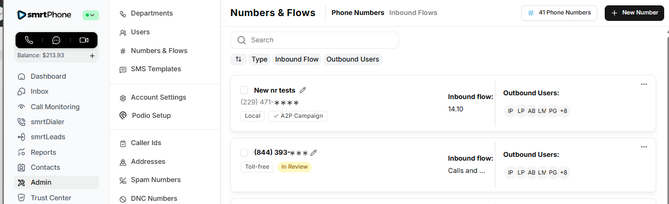
From here, you can start looking for a number that will work for your business. You can buy as many numbers as many phone numbers slots you have. If you need more, add more slots to your account, and then start the phone number hunt!
Phone slots: what you need before you buy
On price-per-user accounts, phone numbers live in phone slots. You need an available slot for every number you buy — if all your slots are filled, the purchase can't go through until you free one up or add more.
Two ways to make room:
- Add slots to your account — increases what you can hold, and changes your billing
- Release a number you no longer use — frees its slot for the new number
Phone slots apply to per-user plans.
If your account is on a per-user plan, each phone number occupies a phone slot, so you'll need an available slot before you can buy a number.
If your account is on pay-as-you-go, slots don't apply — you can buy numbers directly, and you're billed per number.
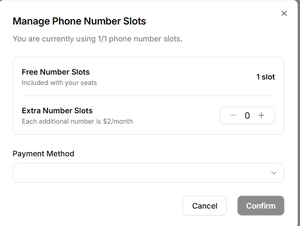 From the Phone Number tab, click on the Phone Numbers button, upper right. You can manage your Phone Number Slots.
Add or delete slots, according to your needs.
Please keep in mind that you can't have more phone numbers than slots.
Choose between (US and Canada) Local, Mobile, or Toll-Free Numbers, and ensure that the number you choose has all the capabilities you need: Voice, SMS and/or MMS. Use filters to narrow the search to find the best fit.
Learn more about Toll-Free numbers ⇢
-
Country / State - The country or state the number will belong to (be aware of Non-US number legislation)
-
Number Type - Local / Toll-Free / Mobile
-
Capabilities - Voice, SMS, MMS (depending on area)
-
Area code / Region - Further accuracy of region, or to select specific area codes
Be aware that non-U.S phone numbers have a different process ⇢
Details available for the available numbers:
-
Number - this is the Phone Number you'd be buying!
-
Region - the general area that the number is associated with
-
Capabilities - the capabilities available for the number (not all numbers provide all 3: Voice, SMS, MMS)
-
Price - how much the phone number will cost - included in your slot's price
Once you've found the perfect number for your business, get it and then Confirm your Purchase. .
Then, you have 3 simple options to be sure you don't lose this number among others on your account:
- Route to someone - This means that any call or text that comes on this new number will be sent to the User you selected.
- Use Existing Flow - Pick a previously created flow to assign this number to
- Create Flow - Routes you to the Flow builder and you get to create a brand new incoming call flow for this particular number
In case you don't pick any of these, the phone number will be automatically assigned to the user who just purchased it!
Depending on your choice, the system will drive you to the next steps. If you just pressed Continue - meaning the number is assigned to the person who just purchased it, for example, the next (skippable) step is to assign it to an A2P 10DLC Campaign.
Bulk buy
You can choose to buy multiple phone numbers at once - up to 10 at a time. Select the ones that you want and then click on the green button Buy all.

Even if you want to buy one, two, or more phone numbers, the process is the same, from step one up until the end.
International Phone Numbers, no matter your plan, will be charged from your Balance.
Call Flow Setup is Mandatory
Next, you need to add a Friendly Name to your Phone Number and set a Flow.
Once you buy a phone number, you have to set a flow.
As set on your account, your only options will be to create a new call flow for your phone number or to route it to a User in your account.
Assign to an A2P 10DLC Campaign
If you registered for A2P (as required for texting) and have active campaigns, the next pop-up displayed will ask you to assign the phone number(s) you bought to one of those campaigns. Pick one and then hit Apply.
If you don't have any A2P 10DLC approved campaigns, this prompt will not show up, and you can continue with the Call Flow.
If you currently have more than one A2P-approved campaign, and you don't pick one from the drop-down menu but click on Skip, the system will choose a random campaign from your list and assign the new phone number(s) to it.
A phone number without a set Call Flow will not receive any communication!
Learn more about inbound communication ⇢
