
Creating a Phone Menu (IVR Menu Applet)
Create customized phone menus to guide incoming callers, automate call routing, and connect customers with the right person or department.
With smrtPhone's IVR (Interactive Voice Response) Menu Applet, callers can navigate your phone system using keypad selections, access automated information, or reach specific users and teams.
Before You Begin
We recommend planning your menu options before building your IVR, especially if you need multiple levels.
Consider which options to offer, where each selection should direct the caller, and what should happen if no one answers or the caller makes an invalid selection.
How to Create an IVR Menu
1. Add the IVR Menu Applet
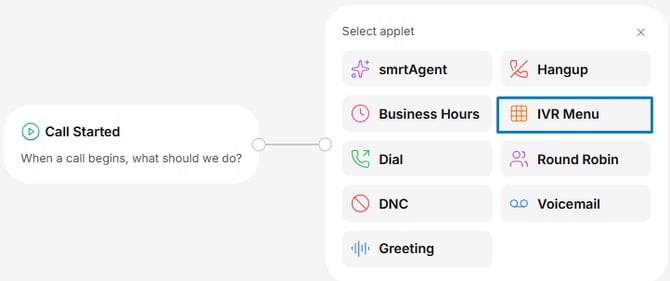
Open the Call Flow Builder and pick the IVR Menu Applet into the main flow, under When a call begins, what should we do?
2. Configure Your Menu Prompt
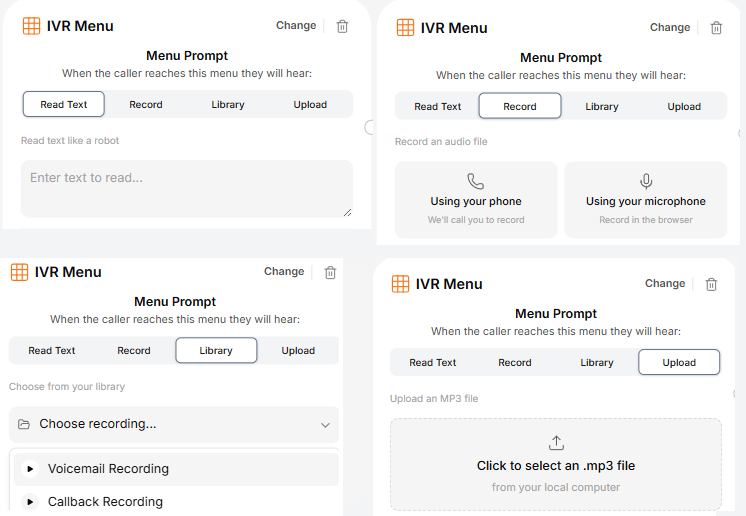
Set up the message callers will hear when reaching your IVR. You can enter text for an automated voice, record a custom message, or upload an MP3 file.
Make sure your prompt clearly explains the available options and their corresponding keypresses.
3. Assign Keypress Actions
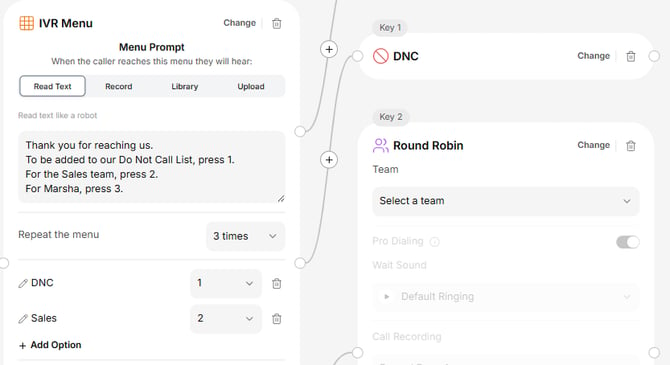
Pick the desired applet next to each keypress option and configure its settings.
For example, pressing 2 could route callers to your Sales team using the Round Robin Applet, while another option could play a recorded message or add the caller to your DNC list.
Additional IVR Settings
No Selection Made
Choose what happens when a caller doesn't select an option, such as transferring to a receptionist, sending the call to voicemail, or ending the call.
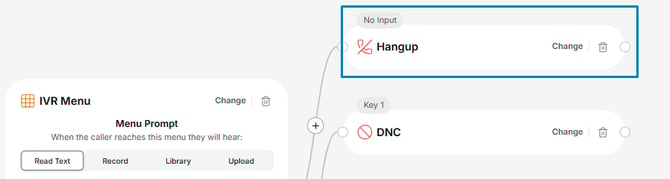
Under Menu Prompt, set how many times the menu repeats before triggering this action.
Invalid Keypress
Configure a custom message for callers who select an unavailable option. You can use Text-to-Speech, record a message, select an audio file from Media Manager, or upload an MP3.
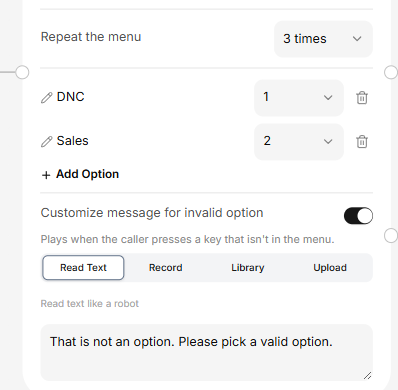
Customize Keypress Options
The IVR Menu Applet defaults to keypresses from 1 to 9 and 0. For a better caller experience, keep menus concise and use multi-level IVRs when additional options are needed.
Example of an IVR Menu
A configured IVR might include:
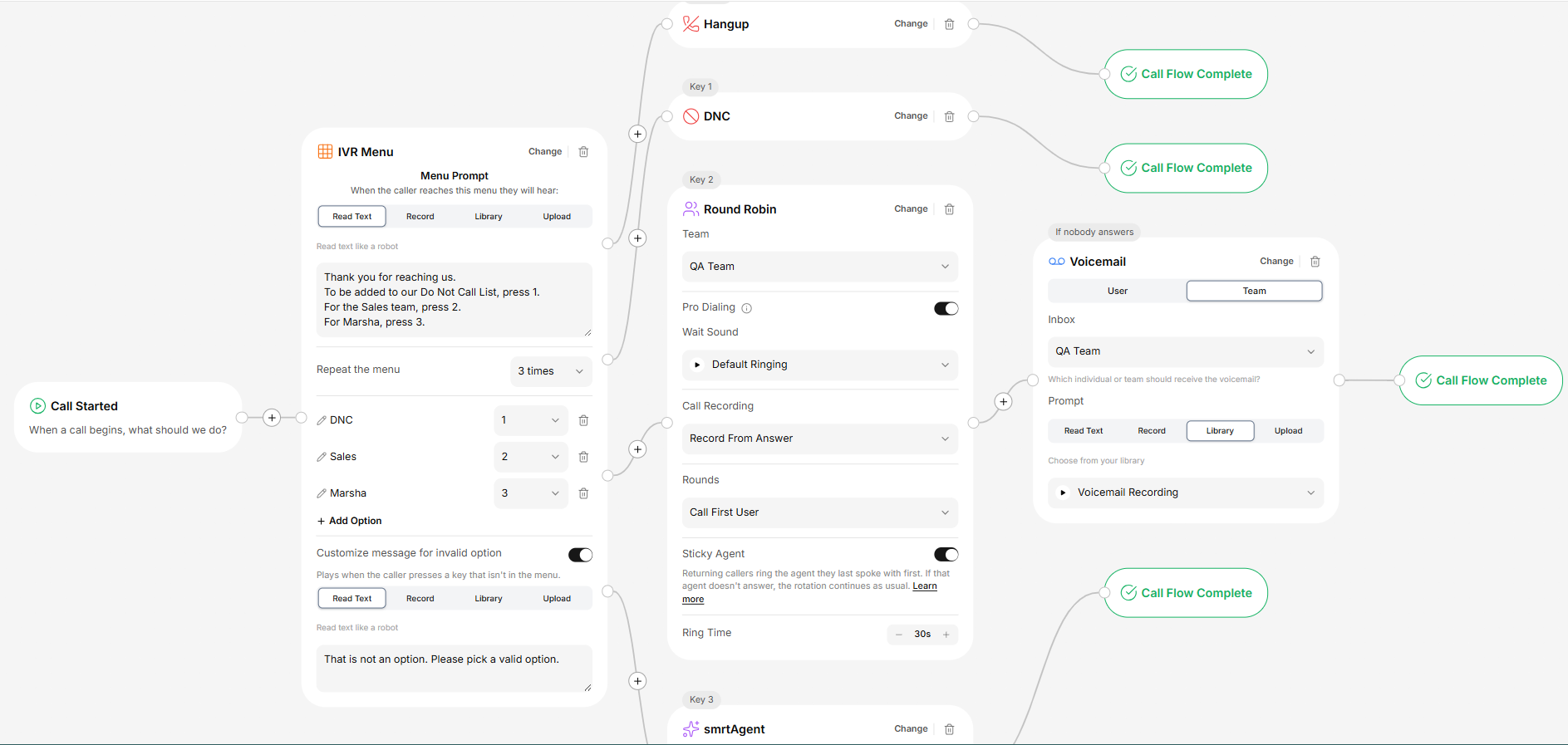
- Keypress 1: When requested, the caller will be added to the DNC list.
- Keypress 2: The call will be routed to a team via the Round Robin option.
- Keypress 3: The call will be transferred to a smrtAgent.
- No selection: Repeat the prompt up to three times, then the call is ended.
- Invalid selection: Play an automated message.
