
HubSpot is a Premium integration in smrtPhone, available as an add-on for $20 per user per month or $16.67 per user per month when billed annually.
Before you begin
Make sure you have a smrtPhone account and a HubSpot account for your organization. If you don't have a smrtPhone account yet, start with Start a Free Trial, then follow the Trial Setup Guide. Creating your account works the same as it does for any other CRM integration.
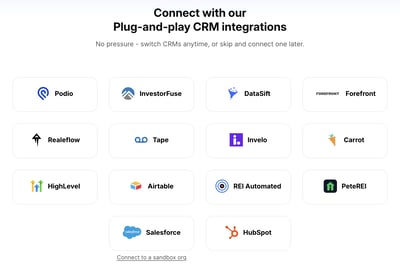
Only the smrtPhone account owner can connect HubSpot, and the HubSpot user who approves the connection must be allowed to install apps in HubSpot.
Connect HubSpot to smrtPhone
- Log in to your smrtPhone account as the account owner.
- Go to Admin > Setup > Connect a CRM.
- Select HubSpot. If your account is on a per-user plan and doesn't have the Premium CRM Integration add-on yet, smrtPhone asks you to activate it first.
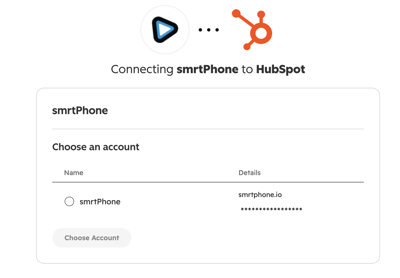
- Choose the HubSpot account you want to connect from the accounts available to you. Double-check you're selecting the right one, especially if your organization manages multiple HubSpot portals.
- Review the permissions smrtPhone requests, then approve them. smrtPhone shows exactly what it is requesting access to before the apps are connected.
- After you approve, you return to smrtPhone and see a confirmation that the configuration was successful.
The "unverified app" warning
HubSpot may show an unverified-app warning during the connection and ask you to confirm. This is HubSpot's standard notice for apps it has not reviewed yet. Confirm to continue.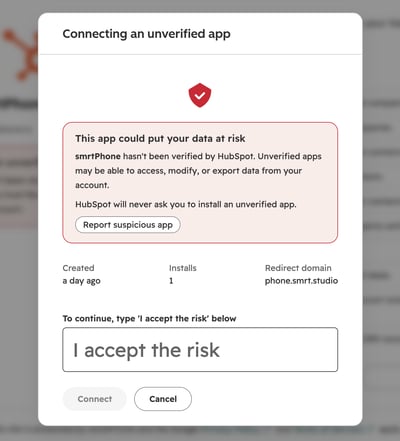
The HubSpot setup page
Once connected, go to Admin > HubSpot setup in smrtPhone. This is your control center for the integration. From here you'll find:
- Contacts: contact sync is on by default once the connection is live. Use Resync Contacts to run a full resync at any time.
- Hub ID: the ID of the HubSpot account linked to this smrtPhone account.
- Call Status, Custom Fields, Unknown Caller settings, and User Mapping: each is covered below.
Map HubSpot users to smrtPhone users
Map each smrtPhone user to their HubSpot user in Admin > HubSpot setup. This sets who owns the calls and texts logged in HubSpot. If a user isn't mapped, their calls still log, but without the right owner.
Configure call statuses
Call statuses (outcomes) come from HubSpot, so changes always start there. They are the same for inbound and outbound calls, and smrtDialer uses the same statuses.
Step 1: Edit statuses in HubSpot
- In HubSpot, click the settings icon, then go to Calling > Call Setup.
- Open the Call Configurations tab.
- Next to Track call outcomes, click Edit options.
- Add your outcomes and save.
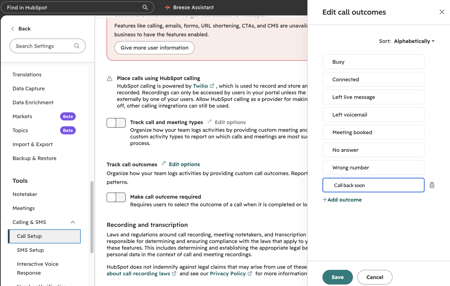
Custom call outcomes need a Sales Hub or Service Hub Professional or Enterprise subscription in HubSpot. You can create up to 30, and an outcome can't be edited after it's saved, only added or deleted.
Step 2: Resync in smrtPhone
Changing call statuses in HubSpot does not update smrtPhone automatically. You need to resync.
- In smrtPhone, go to Admin > HubSpot setup.
- Find Call Status.
- Press Resync. Only admins can resync.
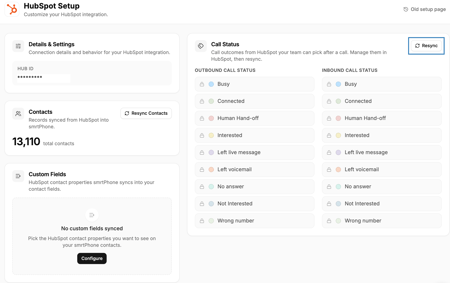
You can't edit statuses in smrtPhone. After a call, the status you pick becomes the HubSpot call outcome.
Map custom fields
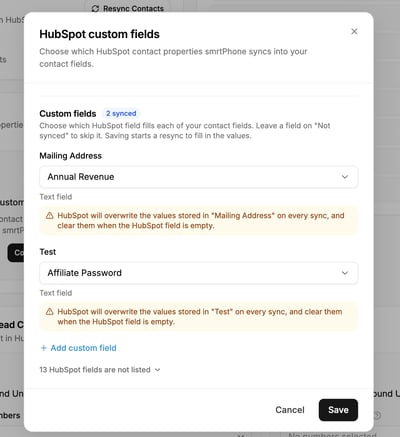
If you want extra contact information to sync, create custom fields in smrtPhone and link them to HubSpot contact properties.
- Go to Admin > HubSpot setup.
- Create a custom field in smrtPhone and give it a name.
- Pick the HubSpot contact property it should sync with.
- Save, then resync so existing values fill in.
Set up contact creation for unknown callers
smrtPhone can create a new HubSpot contact when an unknown number calls or is called. You control this by smrtPhone phone number.
- Go to Admin > HubSpot setup.
- For inbound and for outbound separately, choose All Numbers or Selected. With Selected, pick the numbers.
- When an unknown number calls or is called on a selected number, smrtPhone creates a new contact in HubSpot and logs the call on it.
If nothing is turned on, no contact is created for unknown numbers.
What syncs: phone numbers
By default, smrtPhone syncs one phone number and one mobile phone number per HubSpot contact. Plan your sync expectations around those two fields.

💡Security and Compliance Section ⇢